How to Show Synced Lyrics in Tesla Browser
Connect your Tesla once in its built-in browser. The lyrics page matches the song playing in the car and scrolls with the music when timed lyrics are available.
Set up and use the page while safely parked. Drivers should keep their attention on the road.
Open in Tesla Browser1. Open the car page and connect Tesla
- Open the browser from your Tesla touchscreen.
- Enter lyricsfortesla.com/car in the address bar.
- Review the privacy policy and terms, check the box, then tap Connect Tesla. Sign in on Tesla’s authorization page and allow the requested access.
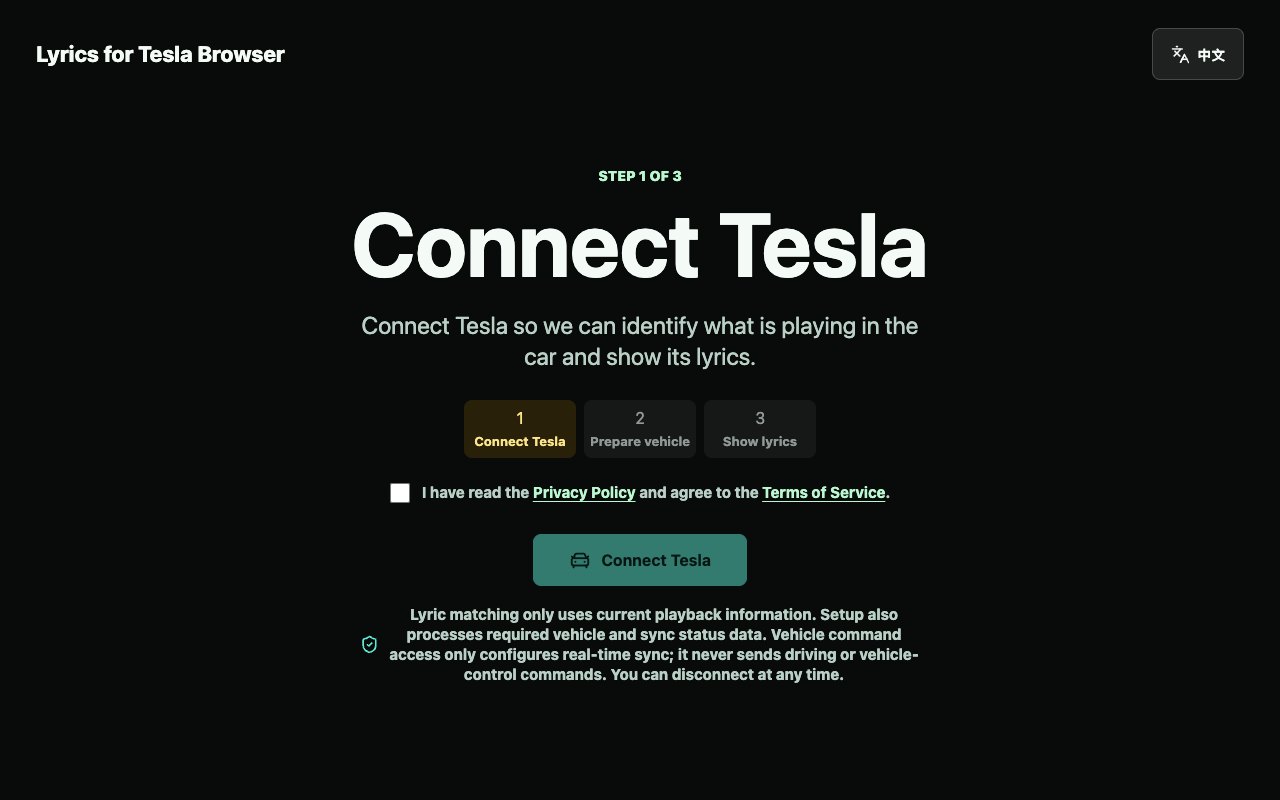
2. Prepare your vehicle for sync
If the page asks you to choose a vehicle, select the Tesla you’re using. If it asks you to add a vehicle key, follow the prompt in the Tesla app using the same Tesla account. Keep the car page open while it checks the vehicle and prepares automatic sync.
Start playing a song through the car. When setup is ready, the lyrics page opens automatically and shows the current track when Tesla provides its title and artist.
3. Bookmark the lyrics page
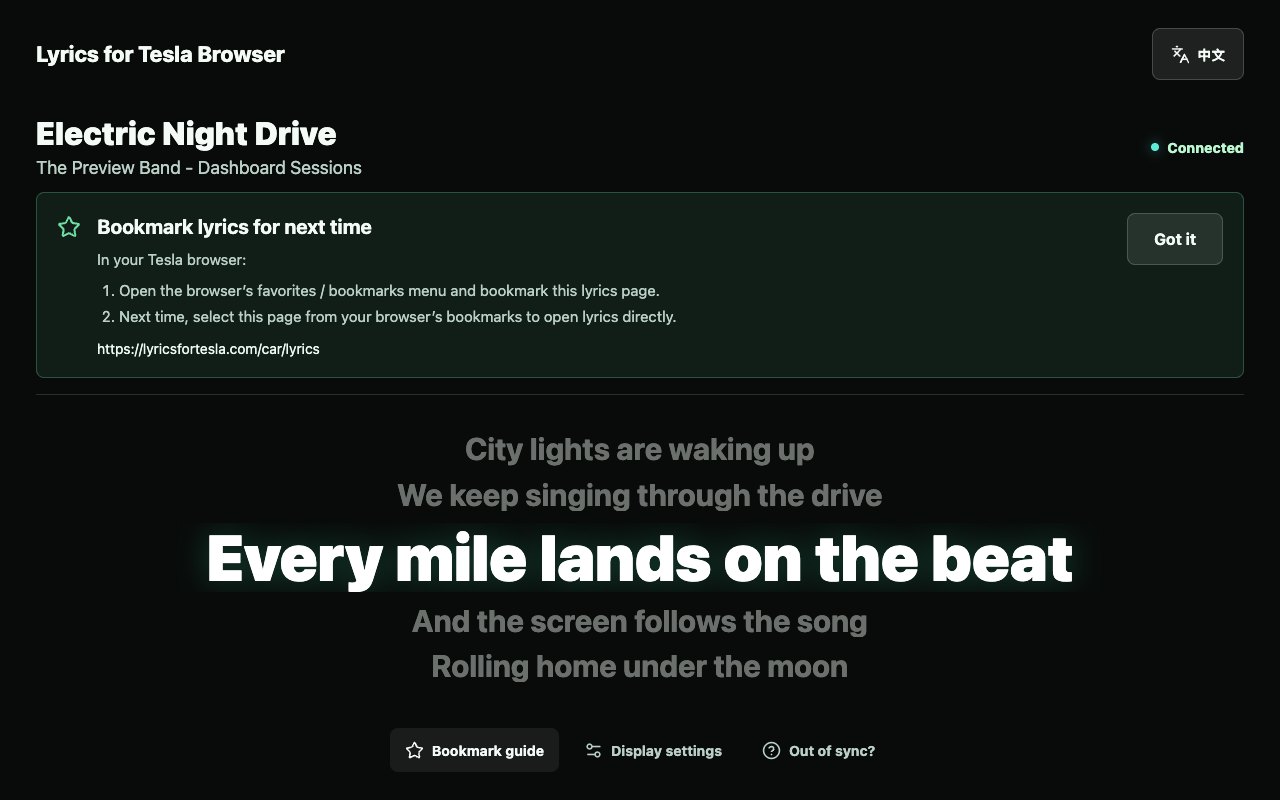
Once you reach lyricsfortesla.com/car/lyrics, open the Tesla browser’s bookmarks menu and save the current page. Next time, open that bookmark in the same car browser. You may need to connect again if you disconnected Tesla or cleared the browser’s site data.
If lyrics don’t appear
- Setup is still preparing the vehicle
- Complete any pending vehicle key prompt in the Tesla app. On the setup page, open Having trouble? and tap Refresh status.
- The lyrics page says “Waiting for song”
- Start or resume a track on the car’s media player. If it’s playing and the page still shows no track, open Display settings and tap the refresh icon under Timing.
- The track is visible but lyrics are missing
- Try another song. Availability varies by track, and the page shows plain lyrics when it finds lyrics without timing information.
- The highlighted line is early or late
- Open Display settings and use Earlier 0.5s or Later 0.5s to adjust the timing.